See what changed in the pipeline this week
Weekly Change Log lists every material deal change: close date, amount, stage, forecast category, probability. Read it before the meeting, not during it.
The job
“I want to see every material change to the pipeline since last week without asking each rep.”
- Sales managers
- Sales leaders
- RevOps
The weekly pipeline meeting usually spends its first half reconstructing what happened: which close dates moved, which amounts were cut, which deals came out of commit. Each rep remembers their own changes and nobody holds the whole set, so the reconstruction is partial and the meeting runs out of time before it reaches decisions.
The CRM already records every one of those changes. Weekly Change Log puts them in one list with the direction of each, so the meeting can start from what moved and spend its time on why.
What it moves
- Forecast change explanation quality
- Pipeline review preparation time
- Slipped pipeline
The division of labour
What RevTech does, and where you decide
In the product
How to do it
- Step 1 of 5
Open the log and pick the window
Open Reporting → Weekly Change Log. Window sets the last 7, 14 or 30 days. There is no Team control, because the change feed is tenant-wide: the log shows every team’s changes, and you narrow by owner in the table’s filters instead.
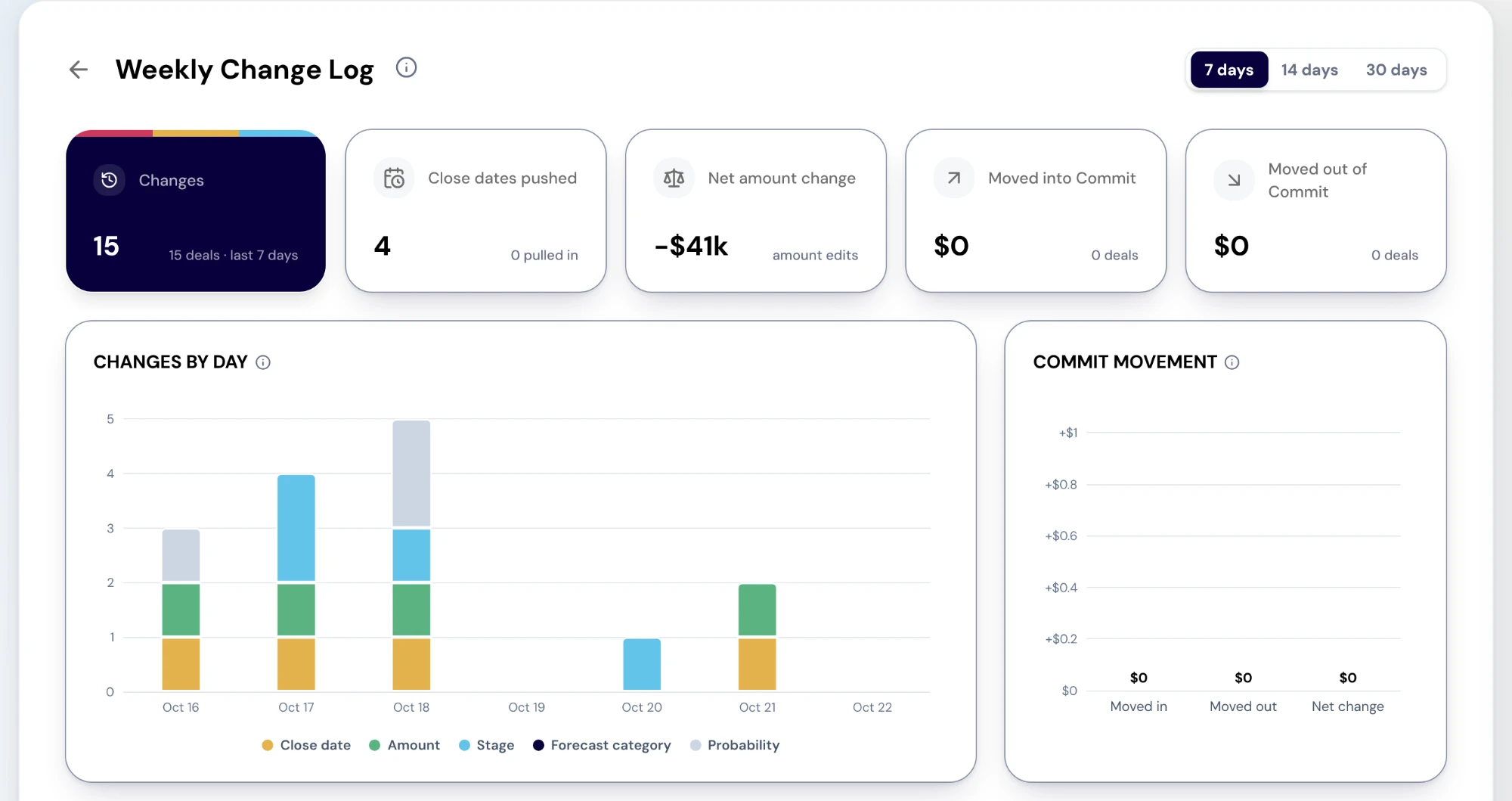
The Weekly Change Log. Cards count the changes in the selected window. Charts show changes by day and how commit moved, and the full list of changes — amount edits, close dates pushed or pulled, stage moves and forecast-category changes — follows below. Sample data. Screenshot of the RevTech application; sample data. Weekly Change Log in the demo workspace: changes, close dates pushed, net amount change and commit movement, above the changes by day. - Step 2 of 5
Read the five cards as the headline
Changes counts every change and the deals behind them. Close dates pushed sits beside how many were pulled in. Net amount change sums the amount edits. Moved into Commit and Moved out of Commit give the amount and the deal count each way. Together they say whether the week made the quarter better or worse before you read a single row.
- Step 3 of 5
Use the charts to find the pattern
Changes by day stacks each day by the field that changed, so a Friday spike of close-date pushes reads differently from a steady trickle of amount edits. Commit movement shows the amount moved into and out of Commit. Select a segment or a bar to list the deals behind it.
- Step 4 of 5
Turn Every change into the agenda
Every change lists one row per change, newest first: when, the deal, the owner, what changed, from → to, the direction and the deal amount. Filters narrow it by change type, direction, owner, stage and amount; owner, stage and amount use each deal’s current values. Filter the direction to Worsened and you have the meeting’s agenda.
- Step 5 of 5
Act in the week, confirm in the meeting
The log is the weekly read. The Action Center carries the same changes as they happen: a deal moving between Commit and Upside, a material amount or stage change, a pushed close date. Act on those during the week and use the log to confirm nothing was missed. Every change you discuss leaves with a next step, an escalation, or a forecast category its owner agrees to.
What arrives
What this puts in your Action Center
| Item | What is prepared | How it resolves |
|---|---|---|
| ForecastCategoryChange | The recomputed rollup impact of a deal moving between Commit and Upside | The deal, on its Journey tab |
| MaterialChange | A change summary and the forecast category impact | The deal, on its Journey tab |
| DealPushed · DealPulled | Stakeholders to re-engage, or a readiness check | The deal, on its Journey tab |
| ProbabilityChange | The driver and the forecast impact | The deal, on its Journey tab |
| ForecastChange | The recomputed rollup, and which deals moved it | That specific report |
Where this is today
The log is tenant-wide: the change feed takes no team or owner scope yet, so there is no Team filter. Commit movement prices each deal at its current amount, because change records carry none; a deal that has closed since is counted but not priced, and the section says so.
What to take away
- Start the meeting from what moved, not from reconstructing it.
- The log is tenant-wide. Narrow by owner in the table, not in the header.
- Commit movement is priced at today’s amount. Read it as direction, not as an exact delta.
- Filter to Worsened. That is the agenda.
See how the work gets done.
Explore how agents prepare work across your revenue teams, and how people review it, guide it and decide what happens next. Fictional data. Real product.
Explore the demo