Keeping your pipeline current from My Pipeline
My Pipeline lists your open deals ranked by forecast category, editable in place or by voice. How to work it weekly, and what a save confirms before it says Saved.
Your deals, ranked the way the forecast reads them
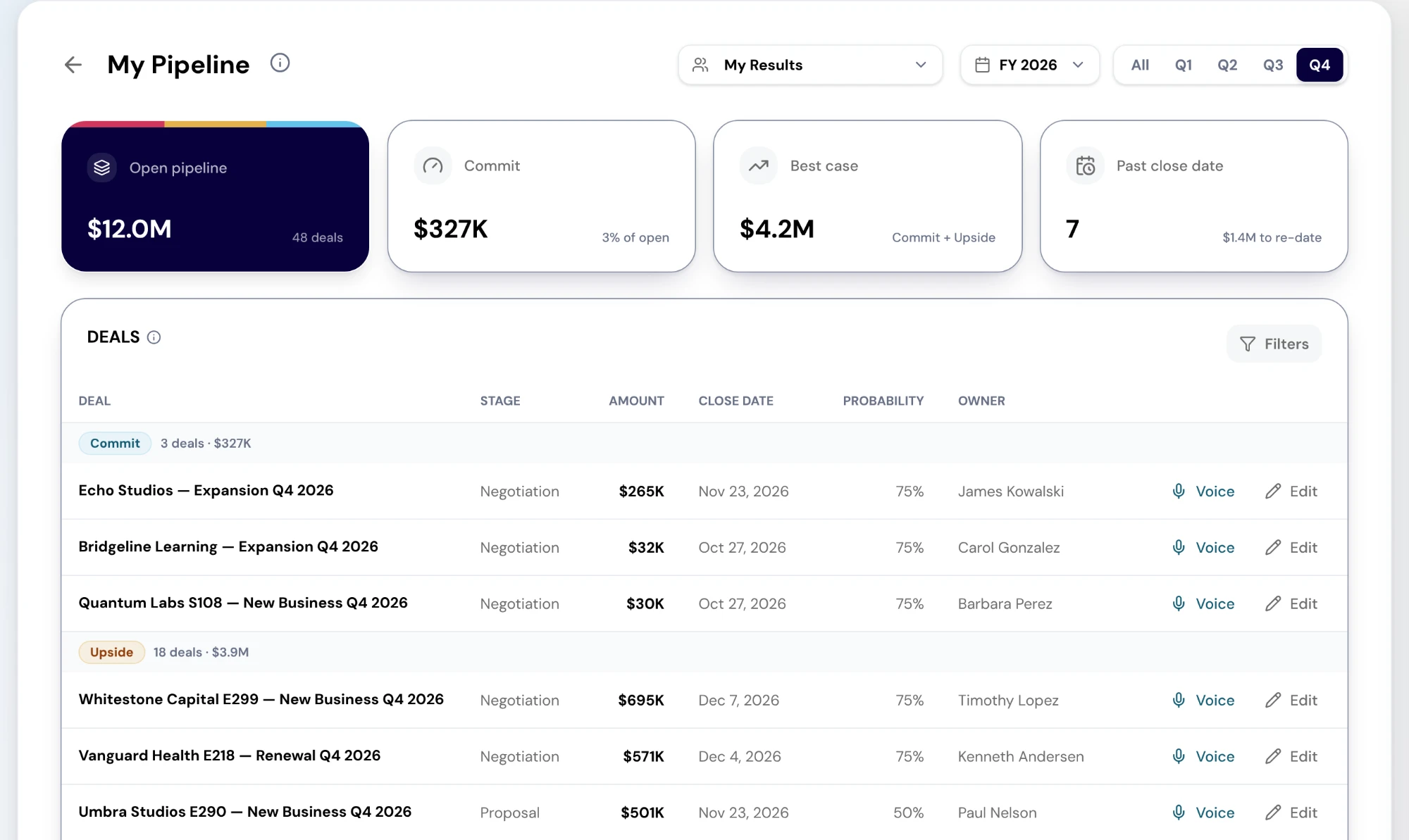
My Pipeline is in Reporting's Pipeline category and is the second report on a seller's Home. It needs View Deals. It opens on your own deals unless the link you followed named a team, and a manager can switch the Team filter to their team. The fiscal year and quarter set which close dates are in view.
Deals are grouped by forecast category in the order a forecast call reads them: Commit, then Upside, then Pipeline, then Omitted, with deals that have no category last. Within each group the largest deal comes first, and each group heading shows its count and total. The cards above read Open pipeline, Commit with its share of open, Best case (Commit plus Upside) and Past close date with the amount still to re-date.
Editing a deal in place
Edit on a row opens the editor under it with seven fields: Deal name, Stage, Owner, Amount, Close date, Forecast category (Commit, Upside, Pipeline or Omitted) and Probability %. Change what is wrong and Save, or Cancel to leave the deal as it was. Changing the owner needs team access. Without it the owner shows as text you cannot edit.
Editing needs Edit Deals. Without it the table is read-only, and its description says so. The editor covers those seven fields only. Next step and custom fields are not on it yet, so those are still updated in the CRM.
Saved means your CRM confirmed it
A save shows the new values straight away and then tells you what is happening on the row. "Saving to HubSpot…" means the write is on its way. "Saved" appears only when HubSpot has confirmed it. "Sent — HubSpot hasn't confirmed yet" and "Saved in RevTech — HubSpot not confirmed" mean exactly that, and are worth a second look before the call. "Not saved" gives the reason and puts the old values back.
A field edit and an owner change are separate writes with their own confirmation, so one can fail without undoing the other. This matters because the forecast call reads the CRM. A change that only looks saved on your screen is a number your manager will not see.
Salesforce deals are read-only here
Writing back to Salesforce is not available yet. A Salesforce deal still appears in its forecast group with its numbers, but it has no Edit or Voice button, and the row reads "Edit in Salesforce — write-back isn't available yet". Make the change in Salesforce and it comes back on the next sync.
Updating a deal by voice
Voice on a row opens the Voice Agent already asking about that deal, so you can say what changed: the new close date, a stage move, a revised amount. The agent identifies the deal by its name, so when two deals have similar names, listen for which one it confirms before it writes.
Voice is the faster route after a call or between meetings. The table is the better route when you are working down the list, because you can see the next deal while you finish this one.
A two-minute pass before the forecast call
Start with the Past close date card. Every deal in it is either a new date or a closed deal, and both are a two-second edit. Then read the Commit group and ask of each deal whether you would still stake the number on it. Move the ones you would not. Then scan Upside for anything ready to move into Commit.
Do it before the forecast call rather than during it. Your manager reads your changes on Forecast by rep and on the Weekly Change Log. A call where the CRM is already current is spent deciding what to do about the gap, not finding out what the gap is.
What to take away
- Work it in forecast order: past-due dates first, then Commit, then Upside.
- "Saved" means your CRM confirmed the write. Anything else on the row tells you what has not been confirmed yet.
- Edits write to HubSpot. Salesforce deals are read-only here for now, so change them in Salesforce.
- Voice opens the Voice Agent already asking about that deal. Check the name it confirms before it writes.
- Two minutes before the forecast call keeps the call about decisions rather than data entry.
See how the work gets done.
Explore how agents prepare work across your revenue teams, and how people review it, guide it and decide what happens next. Fictional data. Real product.
Explore the demo