Update your deals in two minutes
My Pipeline ranks your open deals by forecast category. Edit stage, amount, close date, category and probability in place, or press Voice and say what changed.
The job
“I want to keep my forecast fields current without opening the CRM deal by deal.”
- Sales reps
- Account managers
- Sales managers
Every forecast is built on fields reps update: stage, amount, close date, forecast category, probability. Keeping them current is the least valued part of the job, so it happens in a rush before the forecast call, deal by deal, in a CRM screen built for everything except speed.
The result is a forecast that is accurate on Monday morning and stale by Wednesday. Making the update one short pass down a ranked list, in place or by voice, is what keeps it current between calls rather than only just before them.
What it moves
- CRM update completion
- Time spent on administration
- Forecast variance
The division of labour
What RevTech does, and where you decide
In the product
How to do it
- Step 1 of 5
Open My Pipeline
Open Reporting → My Pipeline. It opens on your own deals for the period in the header. The cards give Open pipeline, Commit, Best case (commit plus upside) and Past close date: the open deals whose dates have passed, with the amount to re-date.
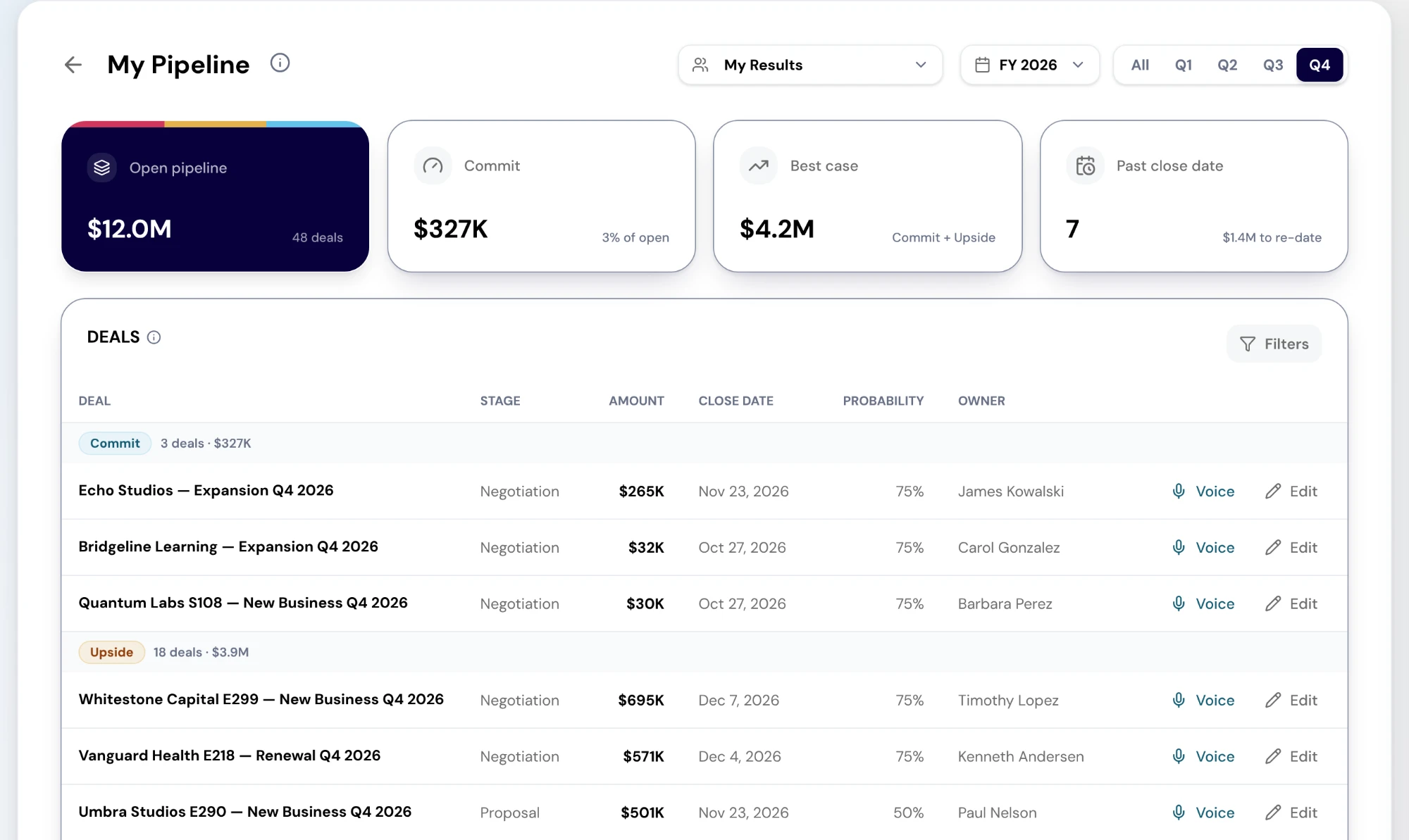
The My Pipeline report for one seller. Cards show open pipeline, commit, best case and deals past their close date. The deals table groups open deals by forecast category — Commit, then Upside — with stage, amount, close date, probability and owner, and Voice and Edit controls on every row. Sample data. Screenshot of the RevTech application; sample data. My Pipeline in the demo workspace: open deals grouped by forecast category, with the edit and Voice controls on each row. - Step 2 of 5
Work the list from the top
Deals are ranked by forecast category — Commit, then Upside, Pipeline and Omitted — and by amount within each. Start at Commit. Those are the deals the forecast relies on, and a stale field there costs the most.
- Step 3 of 5
Edit in place
Edit opens the deal in its row: deal name, stage, amount, close date, forecast category and probability. Save, and the row reads Saving to HubSpot… until the CRM confirms the write, then Saved. If HubSpot does not confirm it, the row says Saved in RevTech — HubSpot not confirmed. If the write fails, the old values come back with the error. Managers can also change the owner here.
- Step 4 of 5
Or press Voice and say what changed
Voice opens the Voice Agent already talking about that deal, with its current stage, amount, close date, forecast category and probability. Say what changed in a sentence and it makes the update. It is for the update you would otherwise skip because typing into five fields between meetings is the reason it would not get done.
- Step 5 of 5
Finish with the past-due dates
Past close date counts the open deals whose dates have passed. Each one is either late or already decided, and either way the date is wrong. Clearing that card is what makes the forecast call about the deals rather than the data.
What arrives
What this puts in your Action Center
| Item | What is prepared | How it resolves |
|---|---|---|
| CloseDateAtRisk | The gap before the slip, plus a drafted mutual-plan checkpoint | The deal, on its Journey tab |
| DealPushed · DealPulled | Stakeholders to re-engage, or a readiness check | The deal, on its Journey tab |
| Data · NewObject | Enrichment candidates for a missing required field, or a summary of a new record to confirm | The record |
Where this is today
Edits write to HubSpot only. Salesforce deals are read-only here, and their rows say "Edit in Salesforce — write-back isn’t available yet". Voice finds the deal by its name rather than a record reference. Editing needs deals:write.
What to take away
- Start at Commit. A stale field there costs the forecast most.
- Saved means the CRM confirmed it. Saving is not saved.
- Voice is for the update you would otherwise skip.
- Clear Past close date before the forecast call.
Go deeper
The material behind this
See how the work gets done.
Explore how agents prepare work across your revenue teams, and how people review it, guide it and decide what happens next. Fictional data. Real product.
Explore the demo