Starting your day from Home
Home answers three questions on one page: what needs doing, how you are tracking, and what to look at. What each role sees there, and how every card leads to work.
Three questions, one page
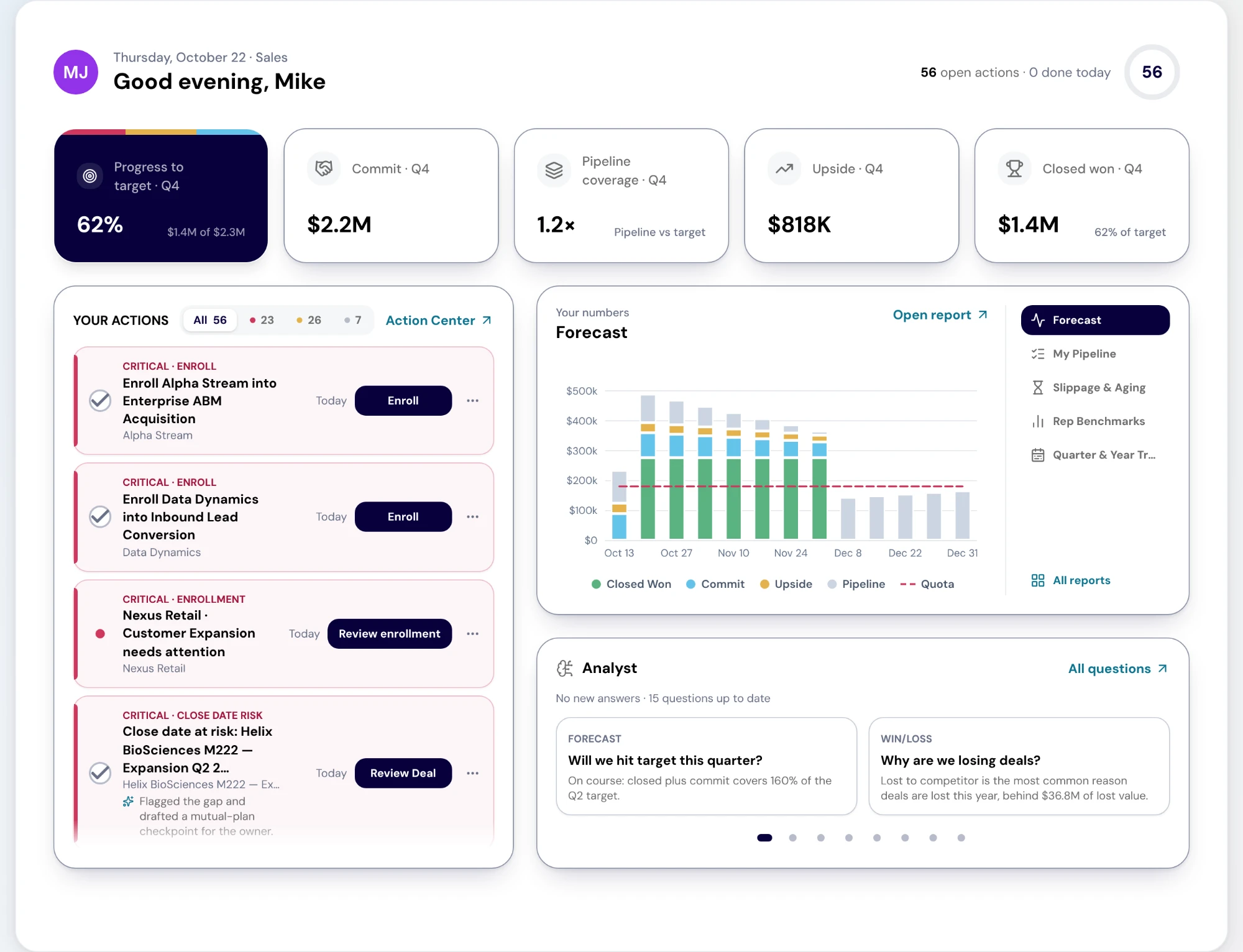
Home is where RevTech opens after you sign in. It is the first destination in the sidebar, above Reporting, and it answers three questions in the order a working day asks them. What do I need to do? That is Your actions, the Action Center queue in compact rows. How am I doing? That is a row of five KPI cards for your role. What should I look at? That is a preview of one of your reports, with a toggle through the others, and the Analyst answers that are new to you.
The agents carry the preparation. RevTech runs them: they research, score, draft, check your rules and raise the work. Home is where you govern what they did. You see what needs a decision, decide it in place, and see whether the number moved. The header says how far through the queue you are: open actions, actions done today, and a progress ring beside them. The (i) beside the greeting has a Take Tour that walks the four parts of the page in five steps.
Your role decides the layout
Home resolves a persona from your role, and there are eight: Sales, Sales manager, Marketing, Marketing manager, Customer success, CS manager, RevOps and Executive. The default roles map onto them directly. Seller is Sales, Marketer is Marketing, Marketing Leader is Marketing manager, CS Rep is Customer success and CS Leader is CS manager. RevOps and Admin both get the RevOps layout, and Executive, Finance and Observer get the Executive layout. Your persona label appears beside the date in the header.
If you hold several roles you get the most senior layout among them: executive first, then the managers and leaders, then RevOps, then individual contributors. A custom role lands on the persona of the default role it extends. Anything RevTech cannot place gets the Executive layout, which shows company-wide numbers.
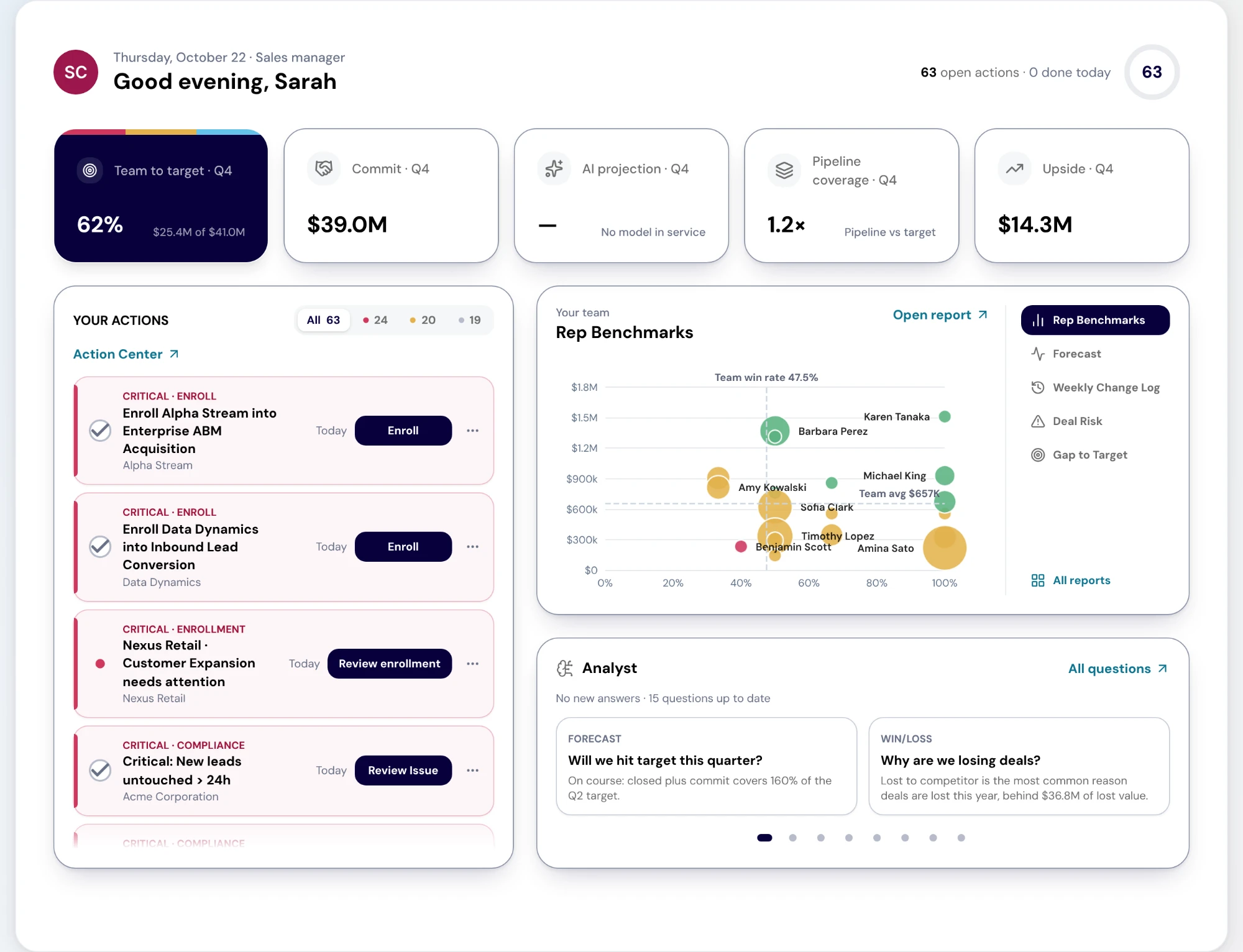
The persona also sets whose numbers you see. Sellers and CSMs see their own book, managers see their team, and RevOps, executives and both marketing personas see the whole company. Some reports cannot narrow to a person or team at all, because their data has no owner: Weekly Change Log, Pipeline Hygiene, New Pipeline Created, Top Accounts and the marketing reports. Their previews always say "Whole company", whoever is looking.
What each persona sees
Each persona gets five KPI cards, the first being the navy hero card, and five reports in the preview toggle, the first being the default preview. The lists below are what is built today. Where the design called for a metric that has no data source yet, such as forecast accuracy, MQLs to plan, speed to lead or revenue saved, the card was replaced by the next metric RevTech can actually measure, so you will not see a placeholder.
- Sales — cards: Progress to target, Commit, Pipeline coverage, Upside, Closed won. Reports: Forecast, My Pipeline, Slippage & Aging, Rep Benchmarks, Quarter & Year Trends
- Sales manager — cards: Team to target, Commit, AI projection, Pipeline coverage, Upside. Reports: Rep Benchmarks, Forecast, Weekly Change Log, Deal Risk, Gap to Target
- Marketing — cards: Sourced revenue to plan, Leads, Sourced pipeline, Active programs, Attributed deals. Reports: Lead Flow Performance, Campaigns, Marketing KPIs, Pipeline Source, New Pipeline Created
- Marketing manager — cards: Sourced revenue to plan, Sourced pipeline, Leads, Attributed deals, Active programs. Reports: Marketing KPIs, Campaigns, Lead Flow Performance, Pipeline Source, New Pipeline Created
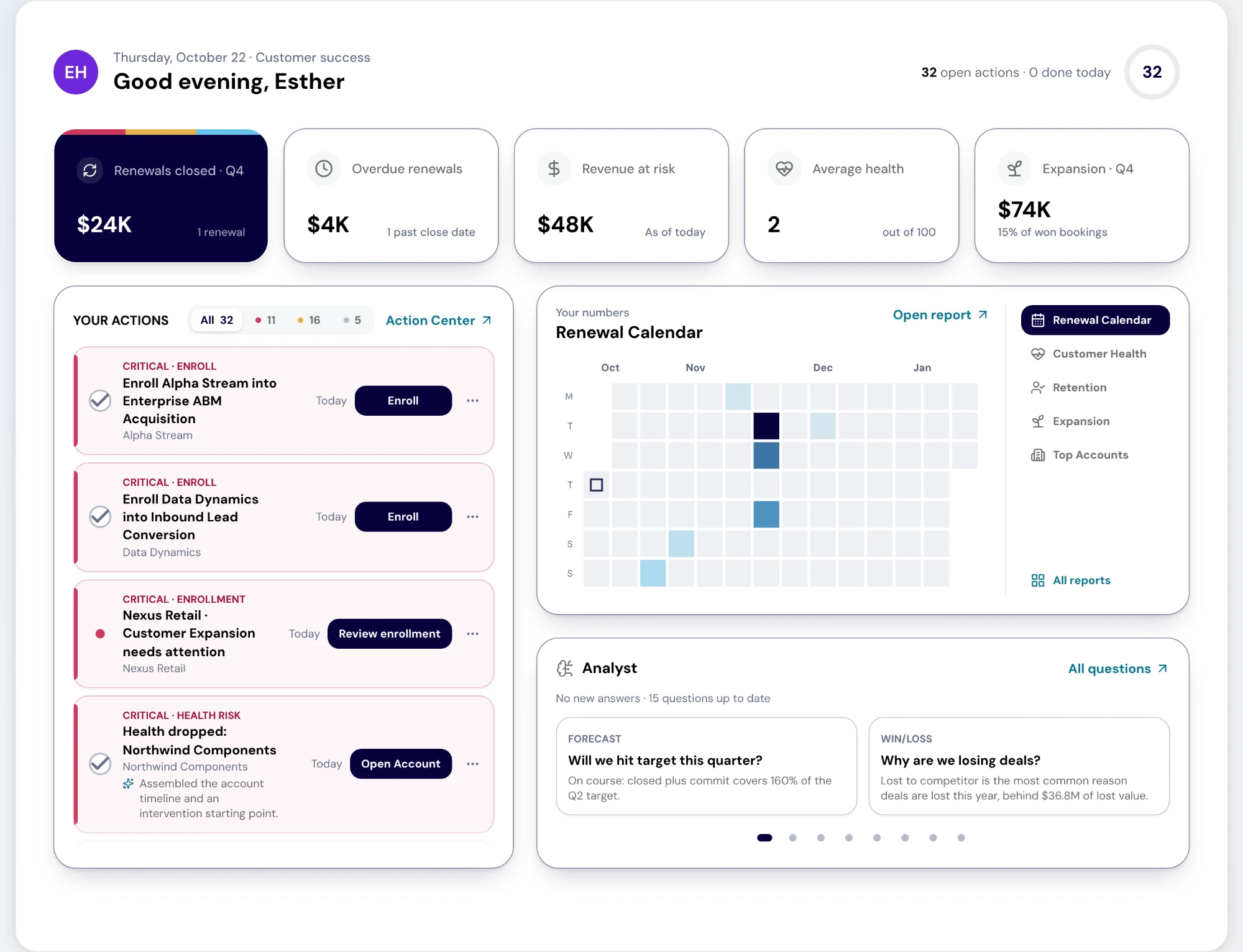
- Customer success — cards: Renewals closed, Overdue renewals, Revenue at risk, Average health, Expansion. Reports: Renewal Calendar, Customer Health, Retention, Expansion, Top Accounts
- CS manager — cards: Gross revenue retention, Churn rate, Revenue at risk, Expansion, At-risk customers. Reports: CS Team, Retention, Customer Health, Renewals, Expansion
- RevOps — cards: Won vs target, Commit, Pipeline coverage, Renewals closed, At-risk customers. Reports: Pipeline Hygiene, Weekly Change Log, Forecast, Gap to Target, Slippage & Aging
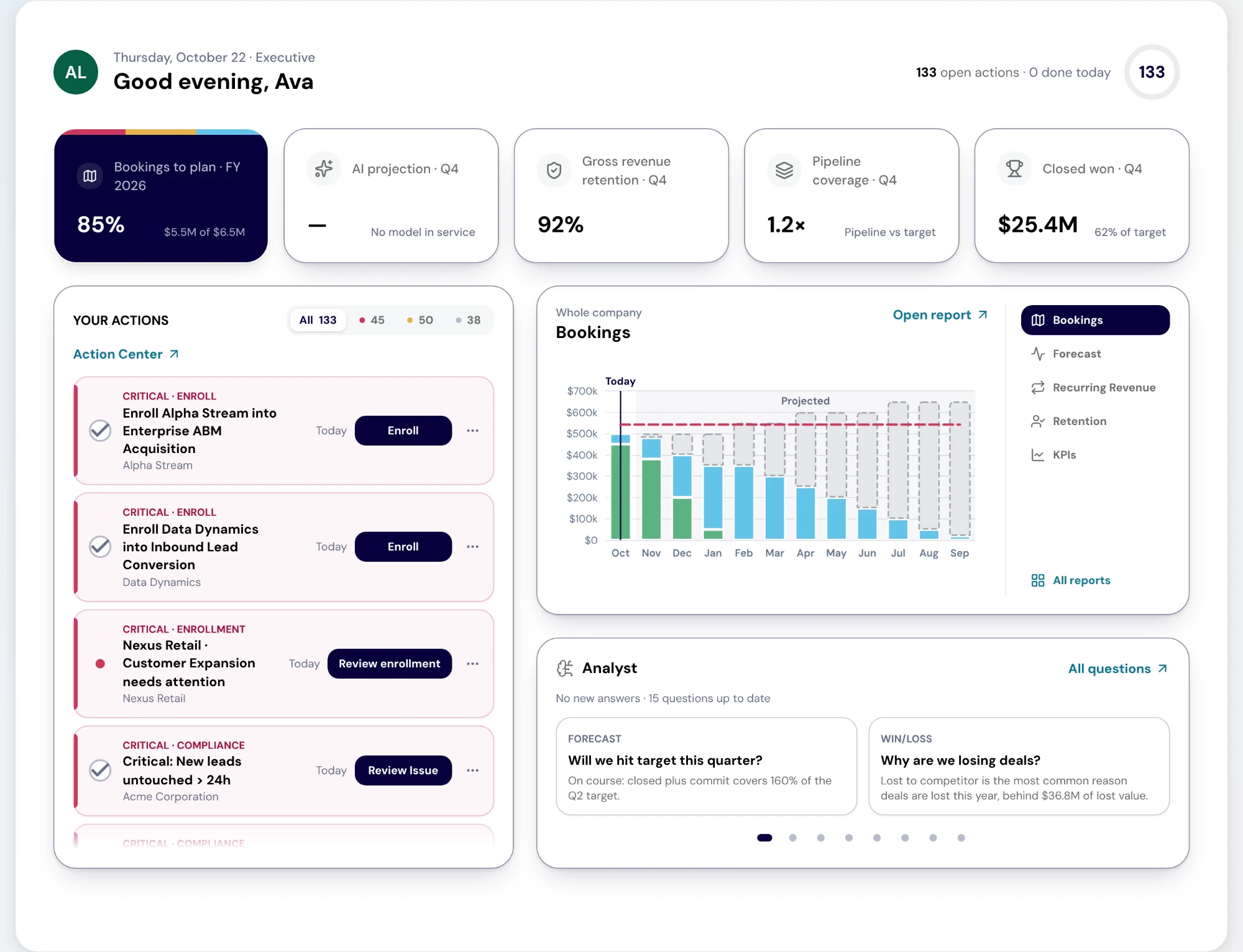
- Executive — cards: Bookings to plan for the year, AI projection, Gross revenue retention, Pipeline coverage, Closed won. Reports: Bookings, Forecast, Recurring Revenue, Retention, KPIs
KPI cards are doors, not a scoreboard
Every card opens the report behind its number, on the same period and scope Home showed, and the report's Back control returns you to Home. Progress to target opens your own KPIs, Team to target opens Sales Team, Won vs target and AI projection open Forecast, Pipeline coverage and Upside open Pipeline Coverage, Bookings to plan opens Bookings, and the customer cards open Renewals, Retention, Customer Health or Expansion. The point of the card is the click: a number on Home is a reason to open the work behind it.
A card only appears when your role can read its data and open its report. If your role cannot, the card drops out and the next metric your role can see takes its place, so the row is always five things you can act on rather than a locked tile.
A dash is not a zero
When RevTech cannot state a figure, the card shows a dash and says why, instead of showing a zero that would look like a real result. The reasons are specific: "No target set" or "Needs a target" when Goals & Targets has nothing for the period, "No model in service" or "Not modelled for this period" on the AI projection, "No renewal deal type in the CRM" on the renewal cards, "No starting ARR in the period" on retention, "No bookings plan set" on Bookings to plan, and "Couldn't load" when a read failed.
Most of these are fixed somewhere other than Home. A missing target is a Goals & Targets job, and a missing renewal deal type is a CRM configuration question for your RevTech team. Treat the reason as the to-do, not the dash.
The report preview and All reports
The report panel shows one report at preview size: whose numbers it shows, the report title, an "Open report" link and the report's main chart. The toggle beside it lists your five reports with "All reports" last, which opens Reporting. Switching never changes the panel's height, so the page does not jump while you look through them.
The five are your persona's reports that your role can open. If one is turned off for your workspace or your role cannot open it, it drops out and the persona's next report takes its place, and after that the rest of what you can open, in catalog order. A report whose preview fails to load shows a tile that opens the report instead.
Analyst answers and the new dots
Under the preview, the Analyst panel shows the questions that have an answer, newest first, two at a time with page dots for the rest. Hover a tile and it fills in the answer's headline figure, with its trend where it has one. A red dot marks an answer you have not opened, and a pill counts them. The dot is per question and stays until you open that question, on Home or on the Analyst page. Looking at Home does not clear it.
For now "seen" is remembered per browser, so a dot you cleared on your laptop can still show on another device. When nothing is new the panel says "No new answers" and how many questions are up to date. The panel only appears if your role has Analyst access and at least one question has an answer.
Your actions: the queue, completable in place
Your actions is the same queue as the Action Center, in compact rows. The pills along the top filter it to All, Critical, High or Low, and a pill disappears when its lane is empty. Critical and high actions are tinted cards with a coloured edge down their full height, and the rest are plain rows. Each row opens with a line of chips (the priority on critical and high rows, the action type and when it is due), then the title and the related record, with the primary button and a ⋯ menu on the right. Critical and high rows also say what RevTech prepared.
Select the green check to mark a row done without leaving Home. Ownership and enrollment actions resolve from their details instead, so their check opens them. The ⋯ menu has Details, which opens the action in a sheet that rises over Home: why now, what RevTech prepared, the expected outcome and your call, then one row of controls, including the owner picker on an ownership action. The menu also carries Request changes and Reject when the decision is yours, and Escalate and Ignore where the action allows them. Three or more ordinary actions of the same kind fold into one Grouped row, and expanding it gives you Mark done, Ignore and Let RevTech fix these for the whole group.
The progress ring in the header and the "Action Center" link above the list both open the full Action Center, for when the queue needs more than a morning pass.
A morning that ends in decisions
The order that works is the page's own. Clear the critical actions first, because those are the decisions the agents are waiting on. Then read the cards for anything that moved the wrong way, and open the one that did. Use the preview to check the report your role is accountable for, and open any Analyst answer marked new.
Home is not a dashboard to admire. It is where you approve what an agent prepared, reject what it got wrong, escalate what needs a manager and hand a pattern to a play. If you close Home having only read it, it did half its job.
What to take away
- Start with Your actions, critical first. The numbers explain the work; they do not replace it.
- Your role picks the layout: five KPI cards and five reports chosen for the questions that role answers.
- Every KPI card is a door. Click it and the report opens on the same period and scope.
- A dash with a reason is not a zero. It names what is missing, and the fix is usually a target or a CRM field.
- A morning on Home should end in decisions: approved, rejected, escalated or handed to a play.
Put it to work
Jobs this page is behind
- Working the queueKnow what to work first every morning“I want to open one screen in the morning and know what to work first.”
- Governance and administrationGet the tenant working in week one“I want to get our workspace set up properly, in the right order, in the first week.”
- InsightWalk into the exec review with the read done“I want to prepare an executive review without spending a day assembling it.”
See how the work gets done.
Explore how agents prepare work across your revenue teams, and how people review it, guide it and decide what happens next. Fictional data. Real product.
Explore the demo