Know what to work first every morning
The Action Center is the day, ordered. How to read it, what the lanes mean, and the three things you can do with a card.
The job
“I want to open one screen in the morning and know what to work first.”
- Sales reps
- Customer success managers
- Managers
The cost of a badly ordered day is not the work that gets done late. It is the work that never surfaces at all: the deal whose close date passed quietly, the reply that arrived while you were in a meeting, the account that stopped engaging six weeks ago. Every one of those was visible somewhere in the CRM, and none of them was in front of anybody.
Ordering the day by hand means holding that whole picture in your head, which is why most people substitute a proxy for it — the calendar, the inbox, whoever asked most recently. The queue exists so the ordering is done from the data every morning rather than from memory, and so that the reason a thing is near the top travels with it.
What it moves
- Time spent on administration
- Follow-up speed
- Action completion rate
The division of labour
What RevTech does, and where you decide
In the product
How to do it
- Step 1 of 5
Open Actions and read the deck first
Actions is the default landing page, so signing in puts you here. The top of the page is a deck of Critical and Attention summary cards you page through — these are the items where waiting costs something. The collapsed cards keep a constant height on purpose, so the title and buttons do not jump as you step through them, and anything that does not fit is behind a Show more.
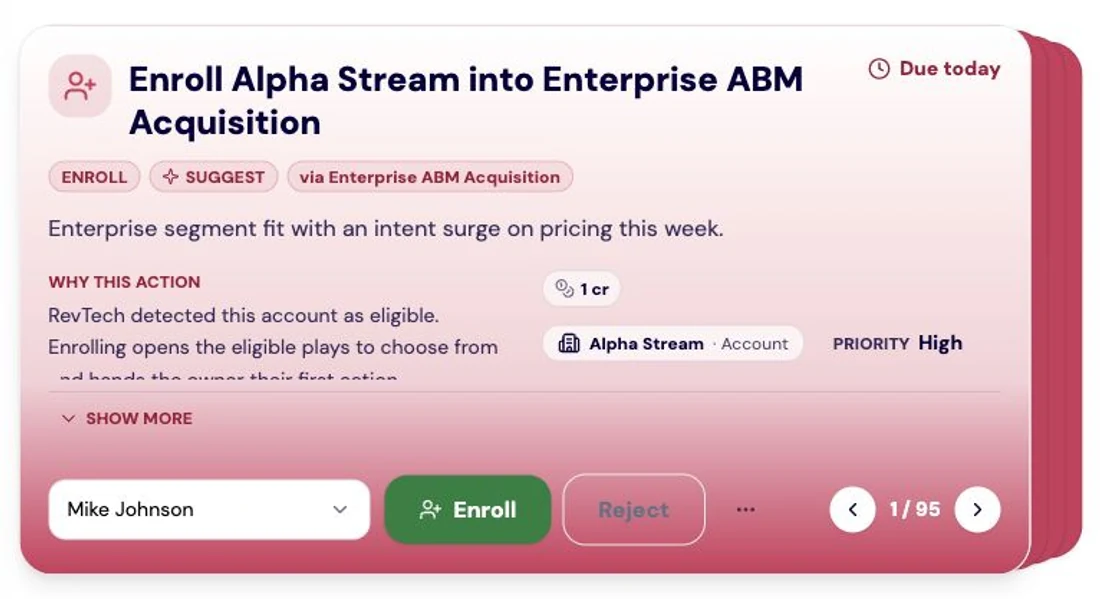
A suggested RevPlay enrollment showing account fit, priority, an assigned owner, and enroll or reject controls for the decision. Screenshot of the RevTech application; sample data. The queue, ordered and grouped. The deck at the top carries what cannot wait. - Step 2 of 5
Work down the date groups
Below the deck the queue is grouped as Overdue, Today, Tomorrow and Upcoming, and each group collapses. The sidebar badge on Actions counts Overdue plus Today, which is the honest definition of what is outstanding — a number that includes next week would never go down.
- Collapse Upcoming on a busy morning; it is not today
- Search across every group when you are looking for one specific thing
- Open the filter drawer to narrow by type, owner or related record
- Step 3 of 5
Expand a card before you decide on it
A collapsed card is a headline. Expanding one gives you the whole case: why it surfaced now, what the agents prepared, the outcome that is expected, the decision being asked of you, the evidence behind it and the records it relates to. Approving without reading the reasoning is how a queue becomes a formality, and the reasoning is the part that tells you when the system has it wrong.
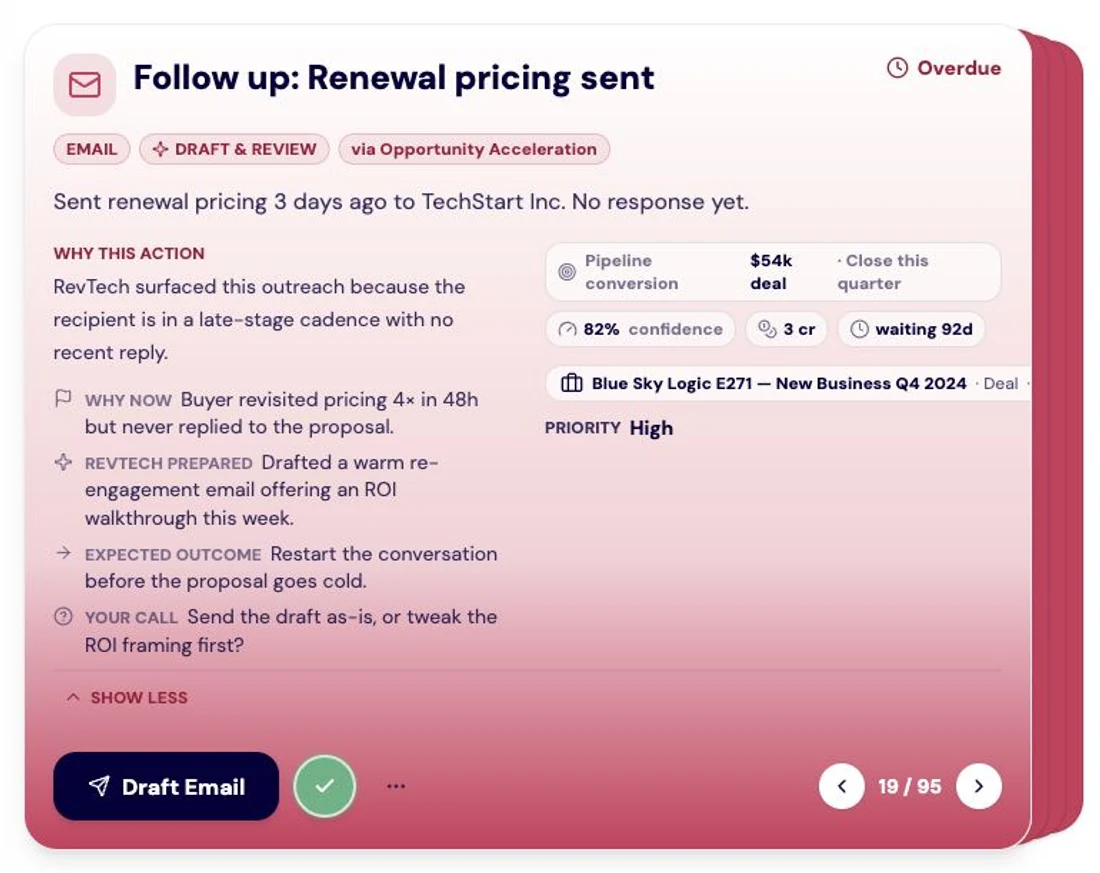
The rationale behind a prioritized action: the signal that triggered it, the KPI it moves, a confidence score and its cost. Screenshot of the RevTech application; sample data. Why this item, and why now. The reasoning travels with the card rather than sitting in a log. - Step 4 of 5
Resolve it, or get it to the right person
Each card carries one primary control that is the decision itself — send the drafted message, enrol the account, open the plan, mark it complete. The overflow menu holds the two ways out: Ignore, which asks you for a reason, and Escalate, which hands the item to a named teammate. One verb per intention, so nothing is ambiguous after the fact.
- Ignore with a reason — the reason is what makes the next version of the queue better
- Escalate — for work that is genuinely somebody else’s
- Following a card’s call to action and coming back returns you to the card you left
- Step 5 of 5
Add the things nobody raised
New Task puts your own item into the same queue, so the one list stays the whole list. Dictating an update to the assistant does the same thing from the other direction — a task you speak becomes a card here.
What arrives
What this puts in your Action Center
| Item | What is prepared | How it resolves |
|---|---|---|
| Meeting | Prep notes drafted from the CRM context, or the capture flow for one that has happened | Opens the assistant on a briefing, or logs the outcome |
| Email · FollowUpEmail | A re-engagement email, or a follow-up carrying a drafted recap | The message flow: read, edit, send |
| ManualTask | Nothing — this is the one you or an agent created by hand | Acknowledge |
| Escalation | The contact history and a suggested message | The message flow |
What to take away
- The queue is ordered from the data every morning. The order is a recommendation; the reading is yours.
- Expand before you decide. The reasoning is what tells you when the system has it wrong.
- One primary control carries the decision. Ignore and Escalate are the ways out, and Ignore wants a reason.
- The sidebar badge counts Overdue plus Today, so it can actually reach zero.
Go deeper
The material behind this
See how the work gets done.
Explore how agents prepare work across your revenue teams, and how people review it, guide it and decide what happens next. Fictional data. Real product.
Explore the demo