Slide 1 of 4
Approval is priced, not warned
Approving generation opens Review and approve generation: a server estimate of this exact job, which you accept or do not.
Size the credit and review cost of a campaign before launching it, and read the approval dialog that prices the work you are about to commit to.
Approving a campaign’s generation opens a dialog headed Review and approve generation, and it is a price rather than a warning. It lists what is Included in this approval, counts the Account plans to generate, gives you a Total, and shows your Available credits against it. Work that has already been approved is excluded and labelled as Already approved, so re-approving a campaign you have added to never re-bills the part that already ran.
This matters because the older flow showed a fixed sentence and no numbers, which taught everybody to click through it. A dialog carrying the server’s own estimate of this exact job is a different object: approving it is an explicit acceptance of that amount, and it is the last point at which the amount is free to change.
If the estimate exceeds what you hold, the dialog says More credits are required rather than failing halfway through. An administrator with billing rights is offered the path to buy them; everybody else is told to ask an administrator to add credits. Either way nothing generates, and the configuration is untouched.
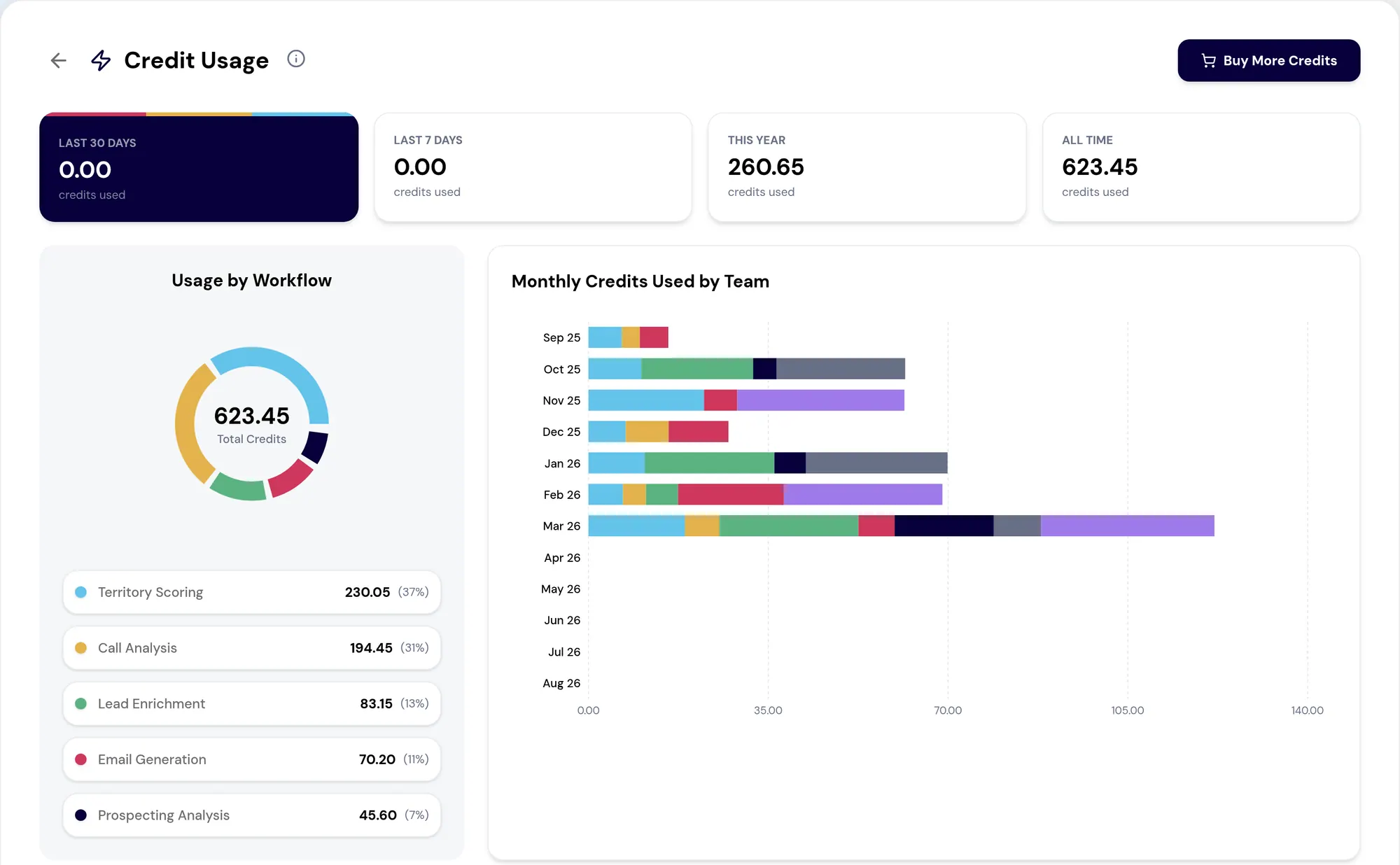
The dialog will tell you the number. Do the arithmetic anyway, because a number you predicted and a number you were handed are read completely differently — the first one you can tell is wrong.
Three counts, and the last of them is the one teams forget. It is a parallel cost driven by audience size alone, whatever you asked to be written, and it is why the dialog gives it a line of its own.
Then hold the asset total against review capacity, because that is the constraint that bites first in most teams. Credits are recoverable; you can top them up. A hundred unreviewed personalized pages sitting in the assets tab is a different kind of problem, and the only fix for it is somebody’s attention.
On the Review step, Save Draft and Approve are two separate controls rather than one button with a confirmation step. That distinction is deliberate and it is worth holding onto: a draft creates no work and costs nothing, while approval commits the credits the dialog names. Collapsing them is exactly what made the older flow ambiguous about which one had just happened.
So when the total is larger than you expected, the answer is to close the dialog and save the draft. Go back, narrow the audience or move an asset from per-account to campaign-level, and approve later against a number you are comfortable with. The configuration survives and nothing has been spent.
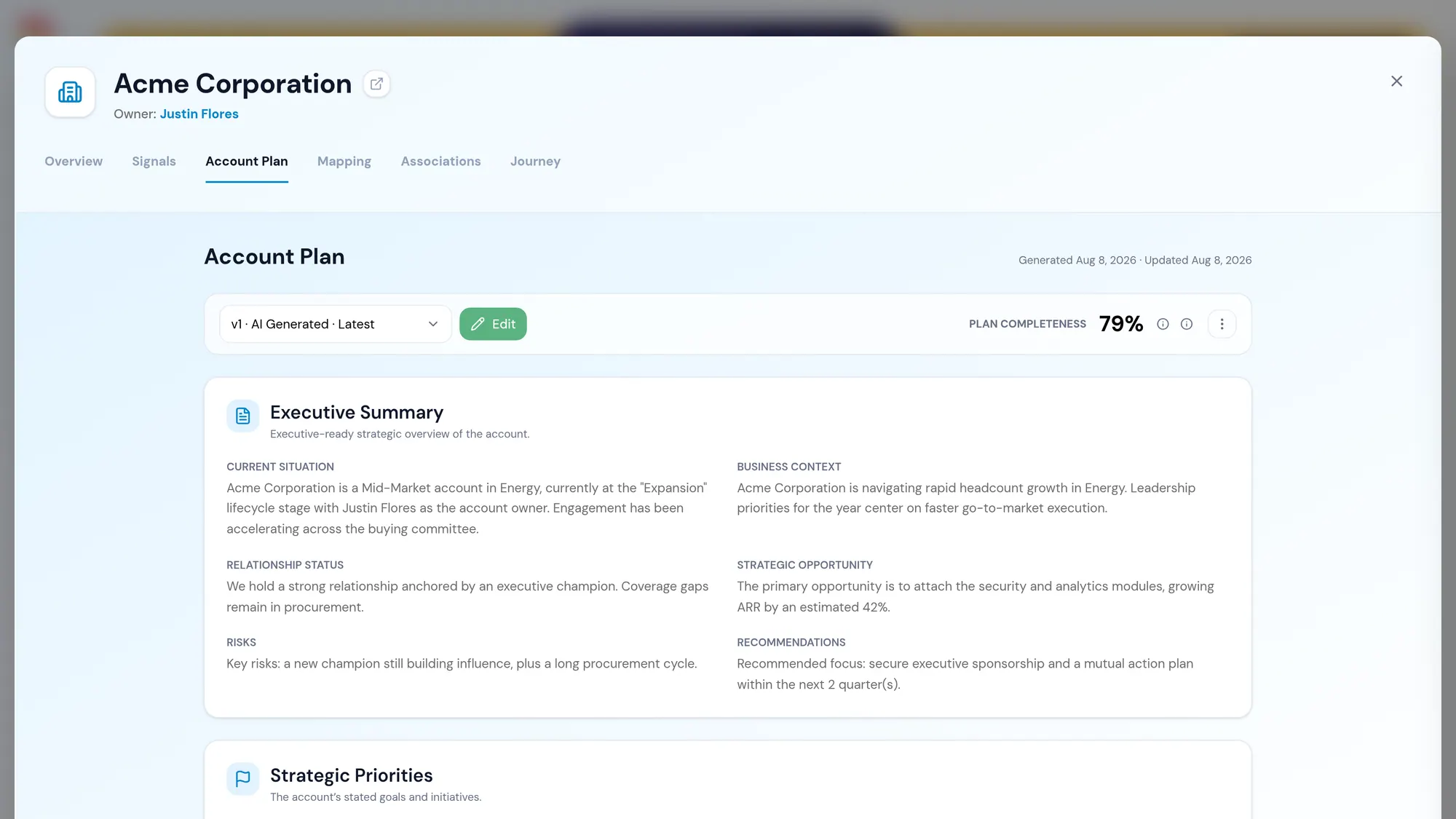
For the configuration above: 44 assets, of which 40 are per-account briefs. Of the 60 audience accounts, suppose 25 have no current account plan. The dialog will count those 25 plan generations on their own line, even though only 40 accounts get briefs. So the job is 44 assets plus 25 account plans, and the plan portion would have been identical if you had ordered a single campaign-level page, because it scales with the audience rather than with your asset choices.
That is the calculation to have on a sticky note when the dialog opens. If the Total matches what you worked out, approve. If you had costed 44 items and forgotten the plans, this is the moment you catch it — close the dialog, save the draft, trim the thin third of the audience you were never going to brief anyway, and come back with both numbers smaller.
Do this in the product
You should be able to answer each of these from memory before opening it. Recalling the answer is what makes it stick; recognizing it when you read it does not.
Account plans to generate. Audience accounts without a current account plan have one generated, so that part of the cost scales with audience size regardless of how few assets you chose.
Close the dialog and use Save Draft on the Review step. A draft keeps the whole configuration, creates no work and costs nothing, so you can narrow the audience or switch an asset to campaign-level and approve later.
The dialog says more credits are required and generates nothing. A billing administrator is offered the path to buy them; anyone else is told to ask an administrator to add them.
Review capacity. Credits can be topped up; a hundred unreviewed personalized assets can only be fixed by someone reading them.
Approving generation opens Review and approve generation: a server estimate of this exact job, which you accept or do not.
The dialog counts Account plans to generate separately. That cost scales with the audience, not with the assets you chose.
The dialog tells you the number. Working it out beforehand is how you notice when the number is wrong for you.
See agents carry the repeatable work of GTM across sales, marketing, customer success, and RevOps. Every action prepared, reviewed, and recorded. Fictional data, real product.
Explore the demo